Tiltify Donation Process – 2025
The screenshots that follow are examples from a desktop. Some text or screens may differ on a mobile device. On a mobile device, may look better in landscape than portrait orientation.
Link: Direct to the Donate page
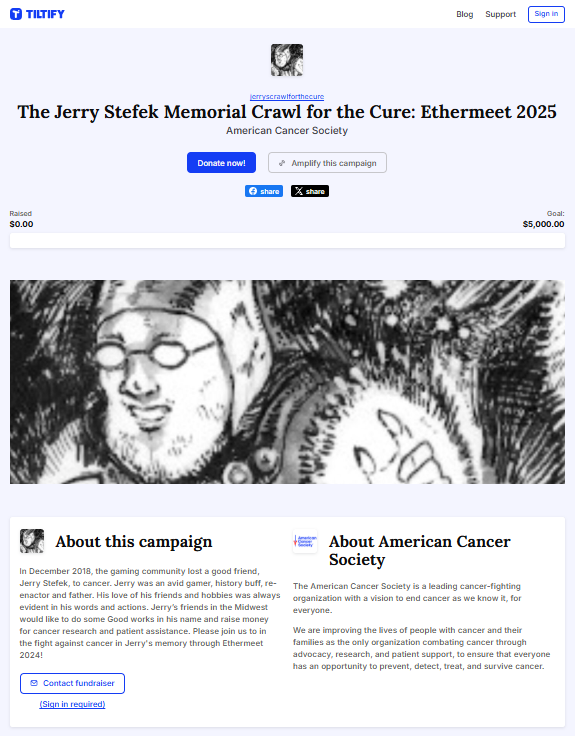
Main Ethermeet 2025 Campaign Page:
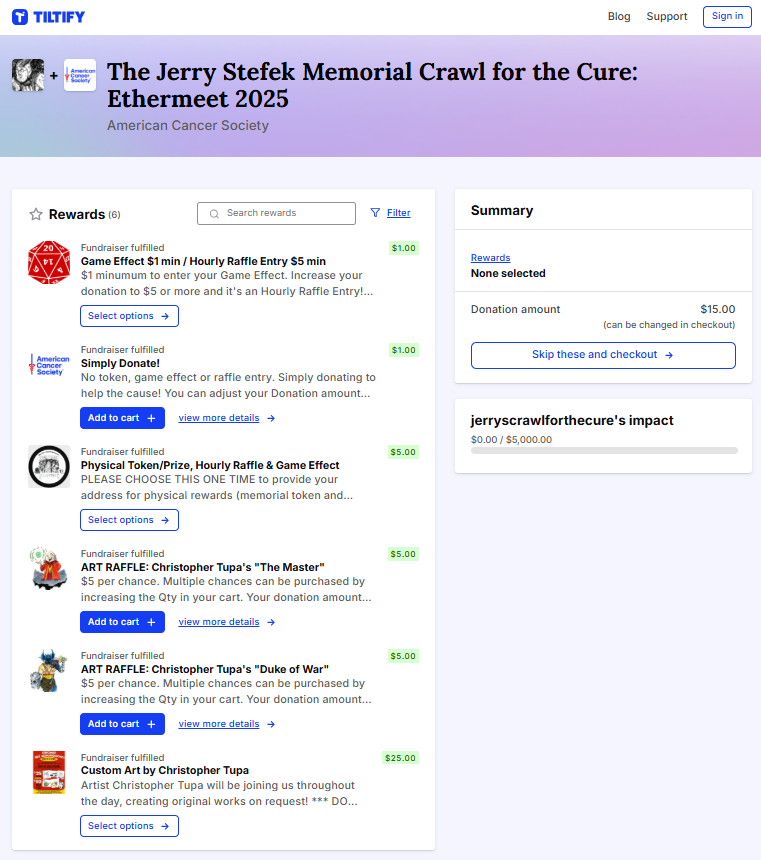
PLEASE pick only one of the Rewards per donation session.
The individual Rewards are described in more detail
on the Donate Now! page.
Once you’ve selected or skipped the Rewards:
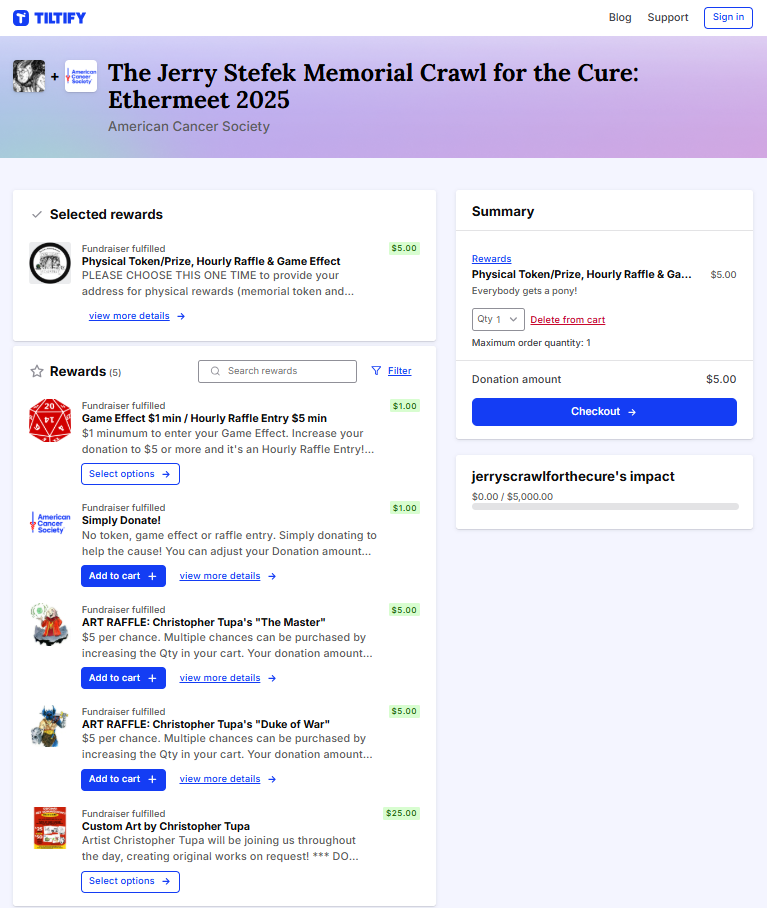
If applicable (e.g., ART RAFFLEs), the Qty can be changed in the Summary here and during checkout. You can Delete from cart if you change your mind and need to choose a different reward.
Click Checkout to continue.
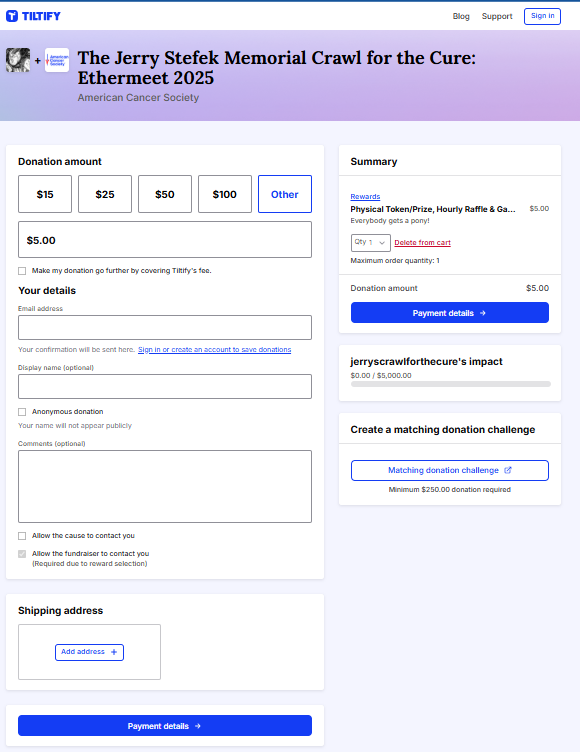
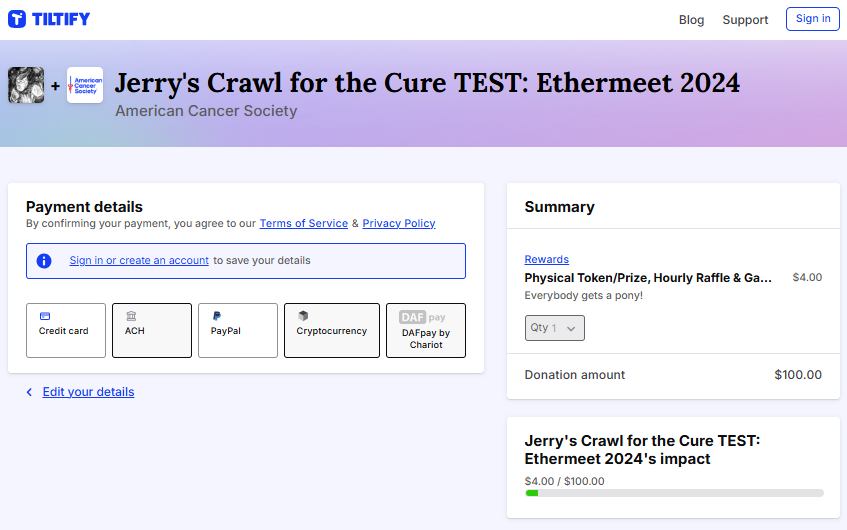
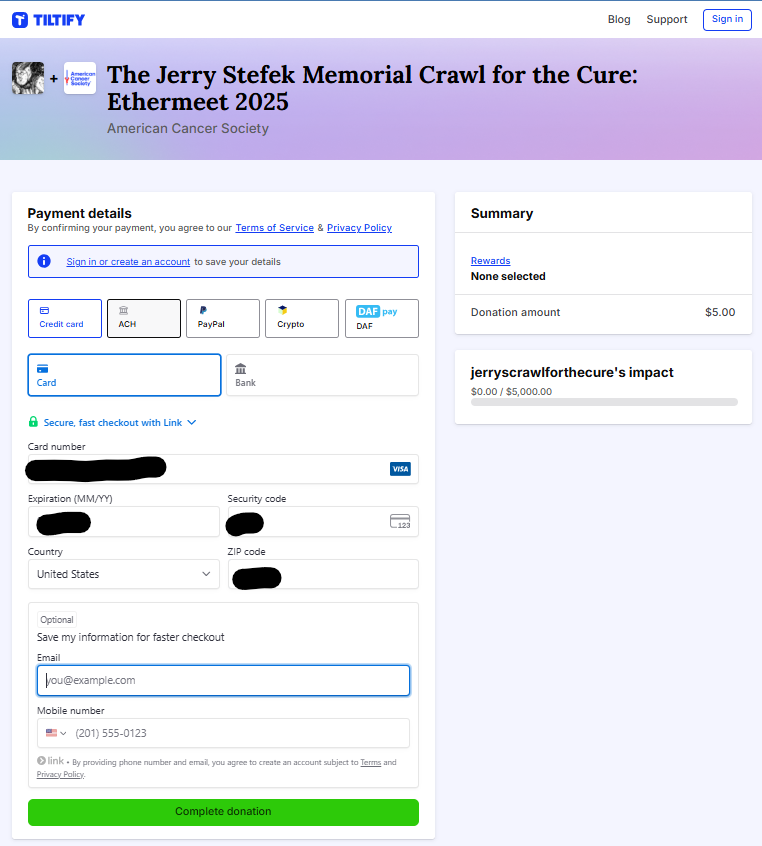
- Donation Amount: here is your chance to adjust/increase your donation amount.
- Email: required.
- Display Name: While not required, we ask you to PLEASE INDICATE A DISPLAY NAME that we can use for Raffle winner and other announcements. If not indicated, and you haven’t clicked Anonymous donation, we may use the name entered for token and physical prize shipping.
- Comments: Will be displayed on the main campaign page. Do not enter any personal information like addresses in this field.
- Shipping Address: If Physical Reward was chosen, the “Shipping address” section will be displayed. Click “Add address +” to enter your shipping address. This is required before checkout can be completed.
RAFFLE LAST CHANCE!: if you did not select a reward, but want this donation to be eligible for the hourly raffles, be sure to click the “Allow Fundraiser to contact you” box! Otherwise we might not know who you are! (If a reward was chosen, it will already be clicked by default.)
Thank you for your GOOD WORKS in Jerry’s memory!